

Video resolution describes how many pixels make up an image — 720p (1280×720), 1080p (1920×1080), 4K (3840×2160), and 8K (7680×4320), each roughly quadrupling the pixel count of the last. More pixels can mean a sharper picture, but resolution alone doesn’t guarantee better quality — bitrate, screen size, and viewing distance all decide whether the difference is even visible.
This guide breaks down what each resolution actually means, when the difference matters, and how to pick the right one for streaming or hosting. For the SD-to-HD basics, see our SD vs HD guide — this one picks up from HD onward.
What Do 720p, 1080p, 4K, and 8K Actually Mean?
Each resolution name refers to the vertical pixel count, a naming shorthand that’s stuck even as horizontal pixel counts have grown alongside it.
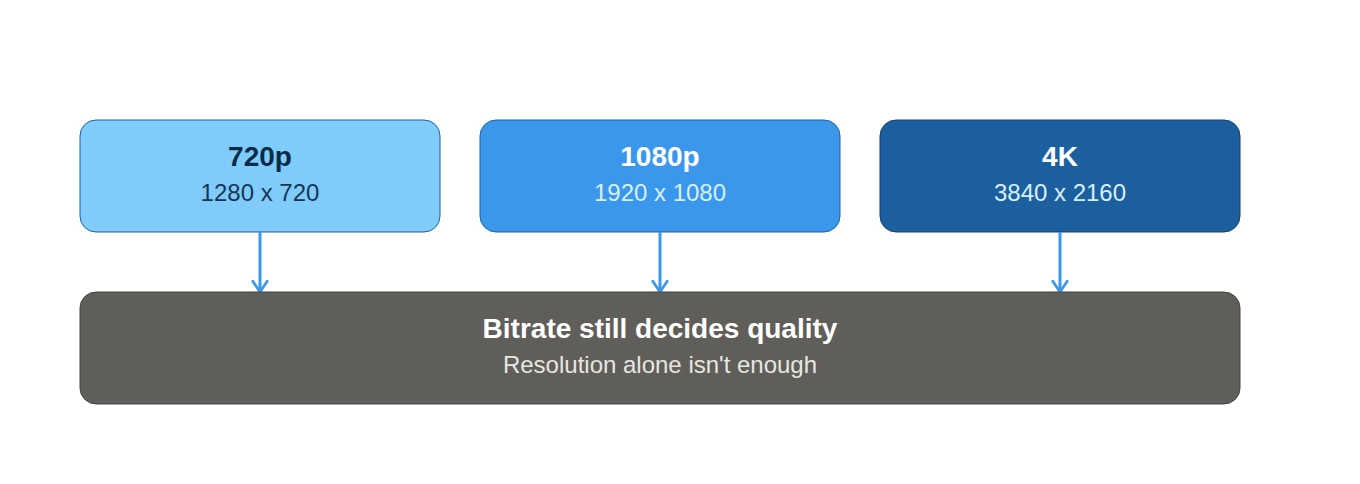
- 720p — 1280×720 pixels, sometimes called “HD” or “HD Ready.”
- 1080p — 1920×1080 pixels, commonly called “Full HD,” with just over 2 million pixels per frame.
- 4K — 3840×2160 pixels (the consumer UHD standard), roughly 8.3 million pixels per frame — four times 1080p.
- 8K — 7680×4320 pixels, around 33 million pixels per frame — four times 4K.
720p vs 1080p vs 4K vs 8K — Which Looks Better?
Higher resolution only looks better if the screen size, viewing distance, and bitrate all support it — otherwise the extra pixels go unused. The benefit of 4K over 1080p, for example, is most visible on a large TV (55–65 inches) viewed from a normal living-room distance; on a phone screen, the two are often nearly indistinguishable.
- 720p — Fine for smaller screens, mobile viewing, or bandwidth-constrained connections.
- 1080p — The most broadly useful default for general streaming and hosting today.
- 4K — Worth it for large screens and content where fine detail matters.
- 8K — Still a niche, forward-looking choice — adoption and codec support are improving but not yet mainstream.
Bitrate Matters as Much as Resolution
A high resolution encoded at too low a bitrate can look worse than a lower resolution encoded properly — more pixels just means more data has to be packed in to represent them accurately. A 1080p video squeezed into a bitrate meant for 720p often shows compression artifacts, blurring, and blocky detail that a well-encoded 720p video wouldn’t have at all.
This is why serious video platforms think in terms of bits per pixel, not resolution alone — and why simply uploading in the highest resolution available isn’t automatically the best move if the bitrate can’t keep up.
Resolution vs. Frame Rate — When to Trade One for the Other
For fast-motion content like sports or gaming, a higher frame rate often matters more to viewers than higher resolution — a 720p stream at 60 frames per second commonly looks and feels smoother than a 1080p stream at 30 frames per second on the same connection. When bandwidth is limited, dropping resolution to preserve frame rate is often the better trade for motion-heavy content, while resolution matters more for static or detail-heavy footage like lectures or product demos.
Choosing the Right Resolution for Streaming or Hosting
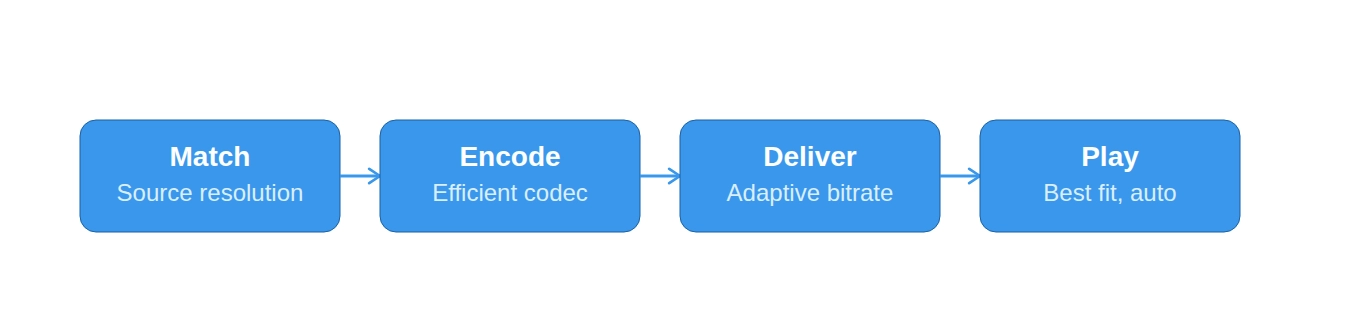
- Match your source — Don’t upscale a 720p source to 1080p or 4K; it adds file size without adding real detail.
- Use an efficient codec — Newer codecs like H.265 or AV1 can maintain the same visual quality at meaningfully lower bitrates than older codecs.
- Deliver adaptive bitrate, not one fixed resolution — so viewers on a fast connection get 4K and viewers on a slow one still get smooth 720p, automatically, the same HLS/M3U8 approach we cover in our streaming guide.
- Don’t over-invest in 8K yet — unless you’re specifically future-proofing, the bandwidth cost rarely matches the visible benefit today.
Where Inkrypt Fits In
Getting resolution right isn’t just an encoding decision — it has to be paired with delivery that actually serves the right resolution to the right viewer. Inkrypt’s video hosting handles this automatically: your source is packaged into an adaptive bitrate ladder and delivered so each viewer gets the best resolution their connection can actually support, without you managing that trade-off manually.